Zohodesk - Playstore Integration Setup Guide (v2 - Google & Zoho OAuth)
What's new in v2: Zoho Desk authorization and Play Store account connections are now both one-click OAuth flows handled right inside the extension's Preference page - there's no need to register your own Zoho API console app or create and upload a Google service-account JSON key anymore.
PREREQUISITES - Before starting the setup
Login to your Zoho Desk account
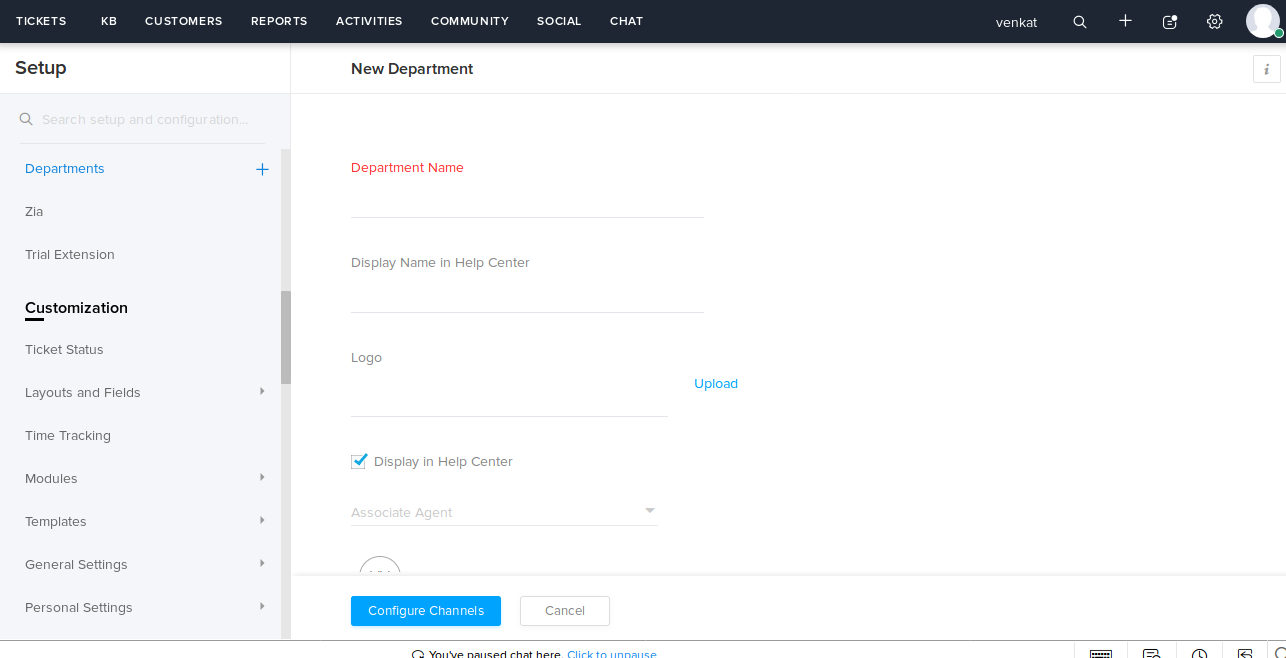
Go to Setup > General Settings > Departments
Create a new Department if there is none - Play Store review tickets will be assigned to a department you pick in Step 1.
Step - 1 (Connect Zoho Desk)
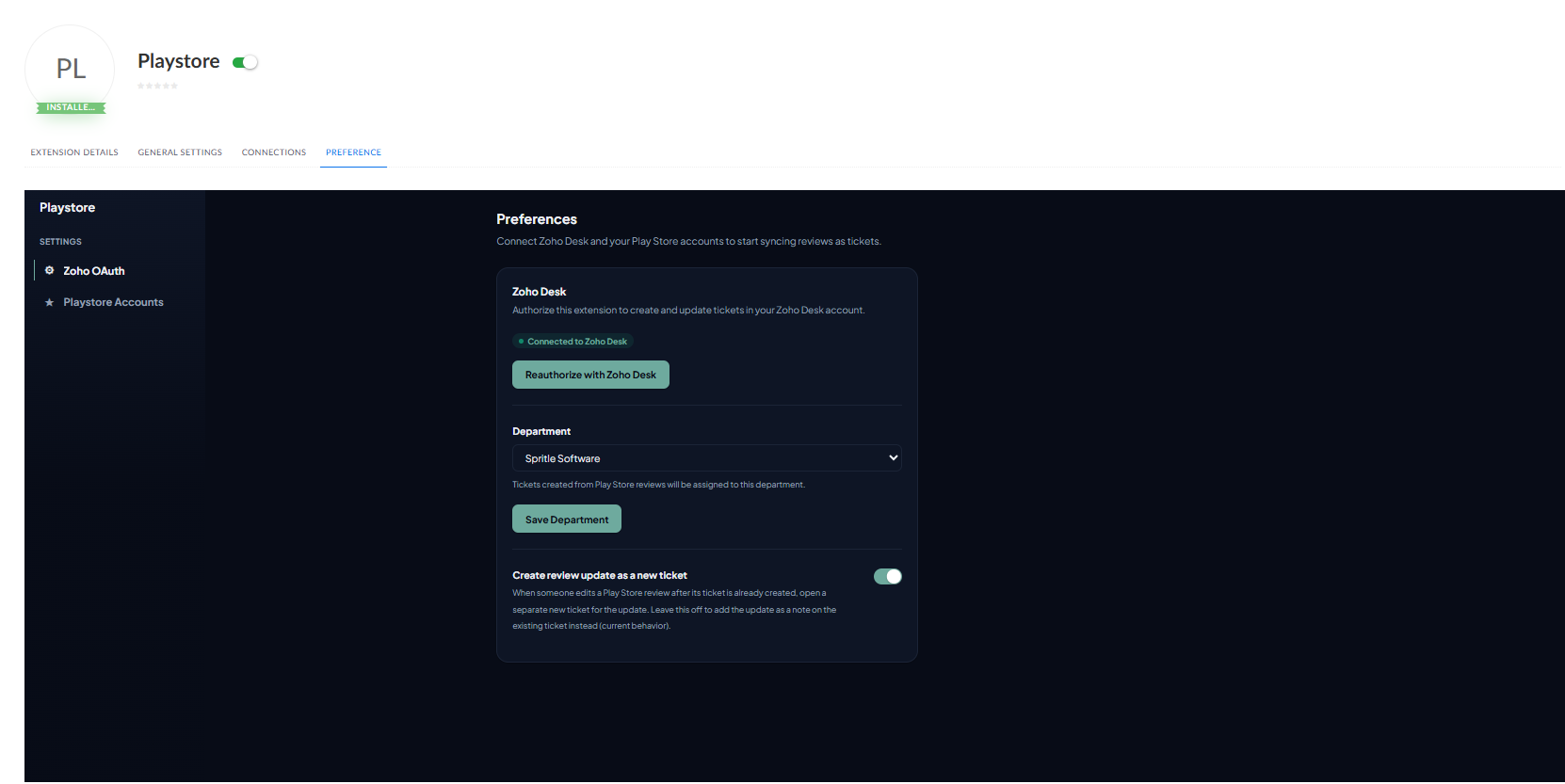
- Install the Playstore extension from the Zoho Marketplace into your Zoho Desk account, then open it from Setup > Extensions > Playstore > Preference.
- Under the Zoho OAuth tab, click Authorize with Zoho Desk and approve access. This extension uses one shared Zoho application for every customer, so you no longer need to create your own Client ID/Client Secret or register a server-based application in the Zoho API Console.
- Once the status shows Connected to Zoho Desk, choose the Department that Play Store review tickets should be created in and click Save Department.
- Optionally turn on Create review update as a new ticket. When enabled, editing a review after its ticket already exists opens a brand-new ticket for the update instead of adding a note to the existing ticket. Leave it off to keep adding updates as a note on the existing ticket (default behaviour).
Step - 2 (Connect your Play Store app)
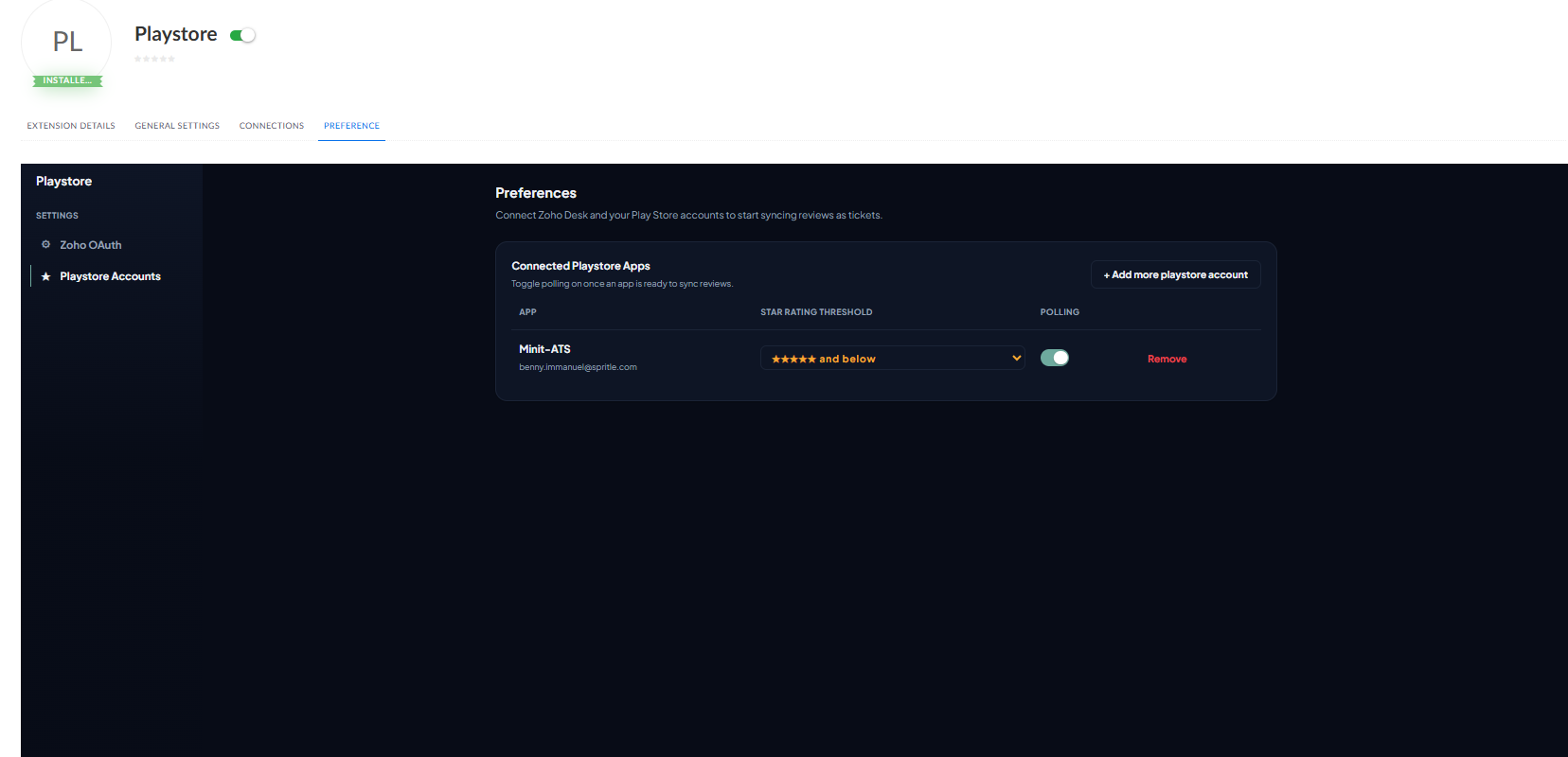
- Switch to the Playstore Accounts tab and click + Add Playstore Account.
- Enter the app's package name, app name, and the star-rating threshold (reviews at or below this rating are synced as tickets), then click Connect Playstore.
- A Google sign-in window opens next - sign in with the Google account that already has access to that app in Play Console, and approve the "View and manage your Google Play Developer account" permission that Google asks for.
- No JSON key file, no Google Cloud project, and no service account are needed anymore. Just make sure the Google account you sign in with already has access to the app in Play Console, with at least permission to view app information and reply to reviews - the same level of access a service account previously needed as an Administrator. SeePlay Console - Users and permissions to add or check access for that account.
- Once connected, the app appears in the Connected Playstore Apps table. Turn Polling on to start syncing its reviews, and adjust the star-rating threshold or remove the app any time from this table.
Step - 3 (Ticket sidebar)
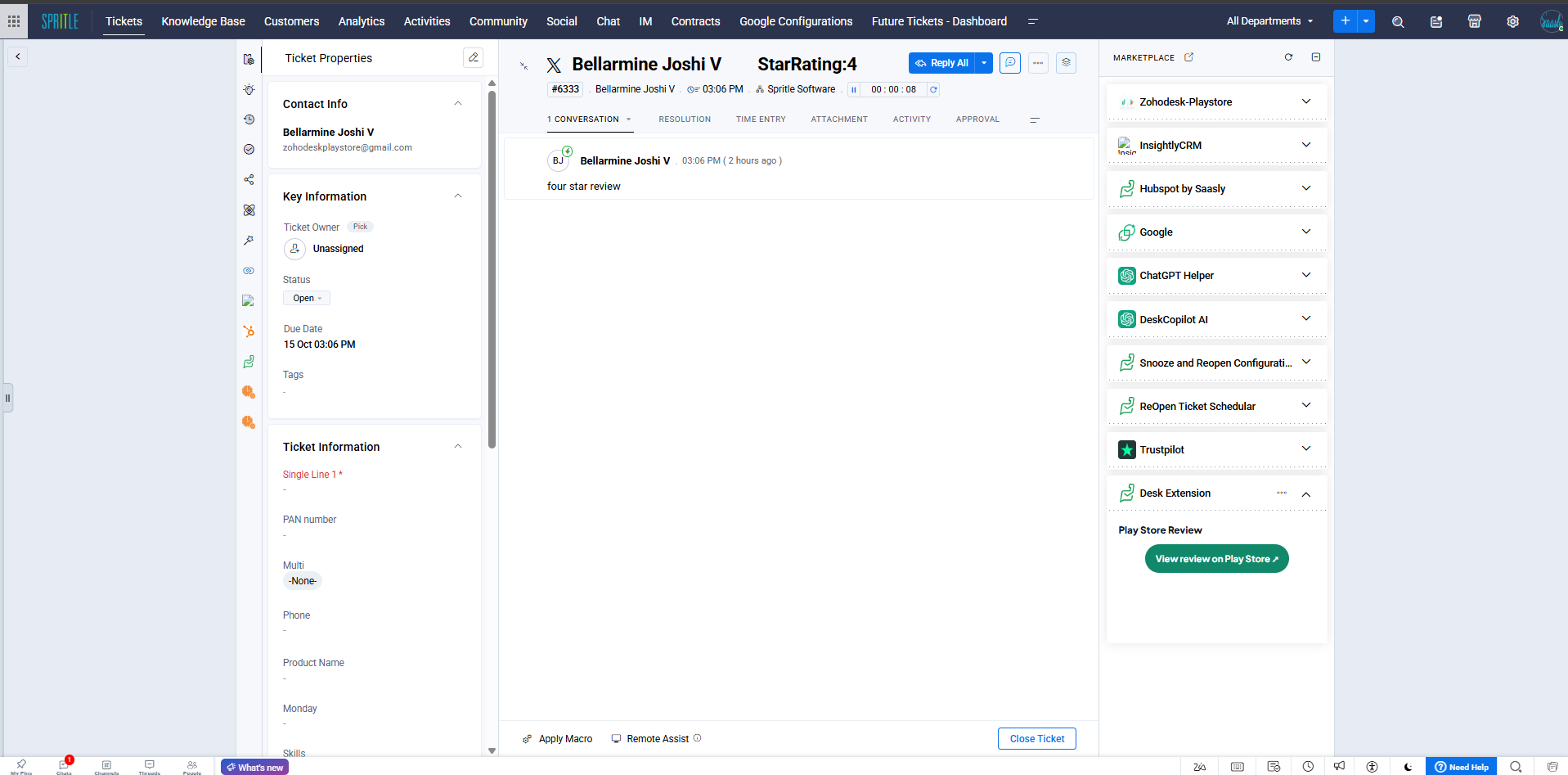
- Every ticket created from a Play Store review shows a Desk Extension panel on the right side of the ticket, with a View review on Play Store button that opens the original review.
Step - 4 (Dashboard)
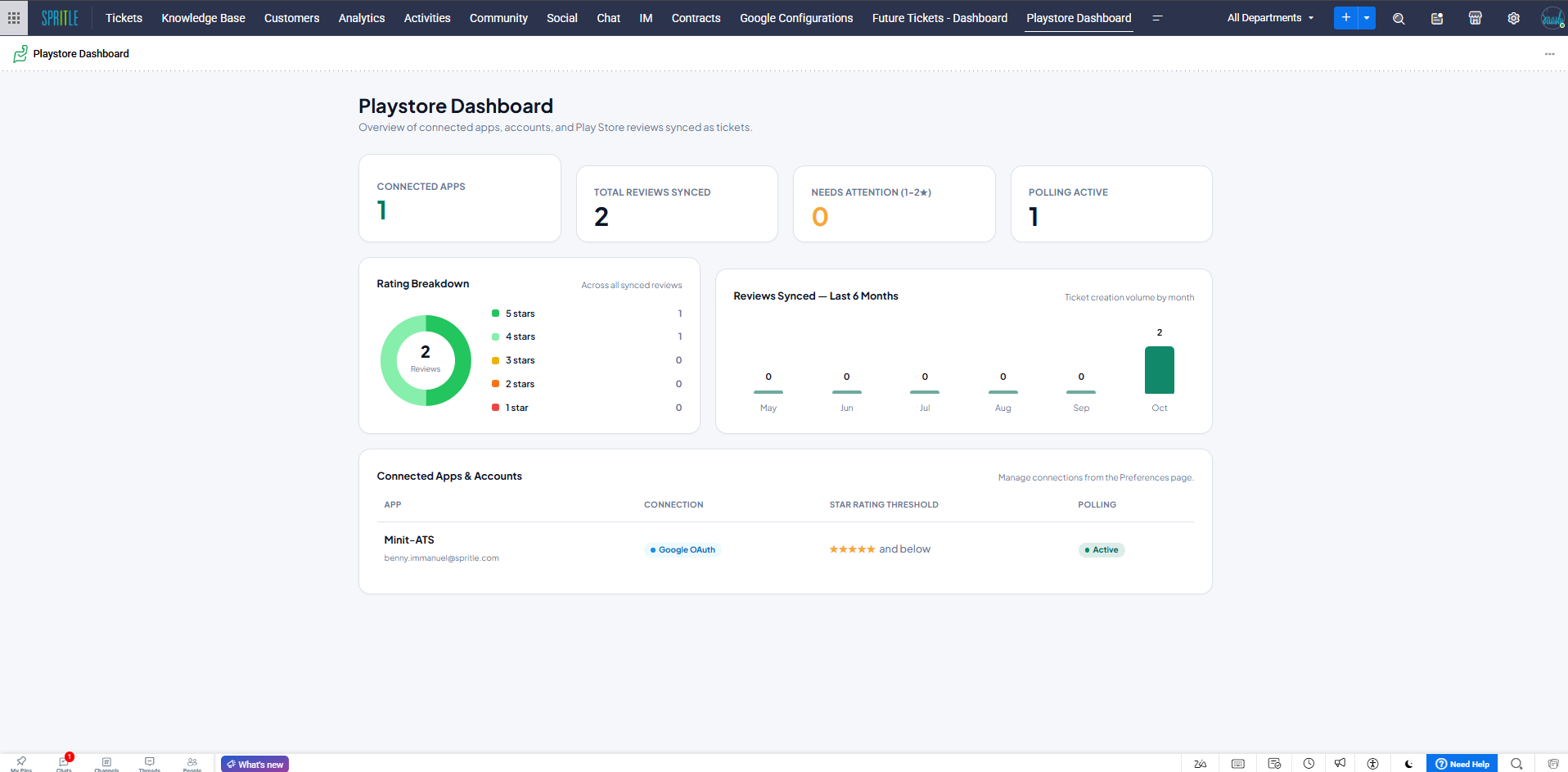
- A Playstore Dashboard tab is added to Zoho Desk's top navigation, with an overview of connected apps, total reviews synced, a rating breakdown, reviews synced over the last 6 months, and all connected apps/accounts in one place.
NOTE: The polling frequency is the time interval for fetching reviews. It's set to 3 minutes by default, which means every 3 minutes the app checks your connected Play Store apps for new or updated reviews.